Can You View a Nanit Baby Monitor on a PC?
Yes, you can watch a Nanit baby monitor on the PC through a web browser or a compatible app session, but there is no official Nanit desktop app for Windows or Mac. You will still need the Nanit camera online, a signed-in account, and a stable WiFi connection for live video.
On this page (10 sections)
- Can you view a Nanit baby monitor on the PC directly?
- Which Nanit models work best with computer viewing?
- How do you open the live view in a PC browser?
- What are the practical limits of PC viewing?
- Can a PC replace a Nanit monitor screen?
- What if you want to view a baby monitor on a TV instead?
- How does placement affect Nanit viewing on a computer?
- What backup monitor should you keep beside the PC?
- Does Nanit have a handheld monitor for night use?
- Which setup should you choose for PC viewing?
Yes, you can use a Nanit baby monitor on the PC for live viewing in many cases, mainly through a browser based session. There is no official Nanit desktop app for Windows or Mac, so your best result depends on your camera model, browser, account sign in, and WiFi signal in the nursery.
Can you view a Nanit baby monitor on the PC directly?
Yes, but direct computer viewing usually means a browser, not a separate PC program. You still need the camera connected to WiFi, the Nanit app account created, and the same login details you use on your phone.
That distinction matters. If you expected a downloadable Nanit program that installs like a video player, you may be disappointed.
The computer becomes another screen for an account based stream, and the stream quality follows your network.
Our earlier guide on how to choose a baby monitor explains why some families want a dedicated screen instead of a phone or laptop. A laptop is easy to move, but it can sleep, update, or lose a browser tab during the night.
Start by confirming the basics. The camera should be powered, online in the phone app, and placed where your router reaches it well.
The PC should be signed in with the correct account, and notifications and pop up blockers should not stop the video page from loading.
Which Nanit models work best with computer viewing?
Nanit Pro and newer Nanit models are the most likely choices for browser viewing. Older models, shared accounts, and business or school networks can add extra limits that have nothing to do with the PC itself.
We compared model notes and buyer patterns, and the checking steps stay the same. Open the phone app first and confirm live video works there.
If the phone view fails, the PC view will usually fail too.
A Nanit Pro baby monitor review can help you check which features your exact model supports, such as video, audio, motion alerts, and saved clips. Those features may not all appear in a browser view, even when they work in the app.
Also check whether your camera is under a subscription or account plan that controls some functions. A live view may work while history, alerts, or downloads stay limited.
That is not a PC problem, and it will not be fixed by changing browsers.
How do you open the live view in a PC browser?
Open a supported browser, sign in to your Nanit account, and select the camera feed. Keep the tab active, allow video and audio permissions, and avoid letting the laptop sleep while you watch.
Use a current version of Chrome, Edge, Firefox, or Safari, depending on your system. Older browsers may block the player or fail to load the stream.
You can also try a private window if saved cookies or extensions cause a sign in loop.
Place the PC where you can see and hear it without blocking the nursery door. A laptop on a desk or a small monitor on a shelf works well, but a long power cord across a walkway is a safety problem.
If the page asks for microphone or camera permission, allow audio playback only when you want two way talk. Keep the volume moderate so loud nursery sounds do not startle the room.
What are the practical limits of PC viewing?
PC viewing is best for checking in, not as the only overnight monitor. Browsers can pause, laptops can sleep, and a single tab can close if the network drops or the operating system runs an update.
Picture quality can also change with bandwidth. A camera that looks clear on a phone may look softer on a larger PC screen, especially at night.
That is normal for a compressed stream, and it does not always mean the camera is broken.
Sound is another limit. Two way audio through a PC may echo if the laptop mic is near the speakers.
Mute the PC mic when you are not talking, and keep the laptop a few feet from the camera.
For long night use, plug the laptop or PC into power. Battery mode can trigger sleep settings that stop the stream.
A dedicated screen or audio unit avoids that risk, which is why this guide covers backup options below.
Can a PC replace a Nanit monitor screen?
A PC can replace a screen for daytime checks, but it is weaker as an all night safety device. It depends on WiFi, power, browser tabs, and your home network staying up.
Our post on the Nanit baby monitor screen explains why a separate screen appeals to some parents. A screen that stays on one feed, with simple buttons and no other apps, is easier to trust at 3 a.m.
A PC has the opposite strength. It is bigger, easier to share with another adult in the house, and useful when you want to watch while working.
That makes it handy as a second view, not always as the main one.
If you work at the same PC all day, computer viewing feels natural. If you close the lid at night, it becomes a poor primary monitor.
Match the tool to the hours you will actually watch.
What if you want to view a baby monitor on a TV instead?
A TV can be a better shared screen than a PC for a living room or nursery. It stays plugged in, it has a larger picture, and it does not need a laptop battery.
Our guide to baby monitor to TV covers casting, HDMI, and built in TV apps. The right choice depends on whether your TV supports casting, whether your camera allows it, and how far the nursery is from the router.
For Nanit specifically, check first whether the live feed can be cast or mirrored cleanly. Some routes add delay, and delay matters if you plan to respond to crying from another room.
Use the TV as a second screen if the PC feels awkward. Keep the phone app nearby for alerts, because a TV view may not show every notification the app sends.
How does placement affect Nanit viewing on a computer?
Good placement helps both the camera angle and the WiFi signal. A camera that is too high may show the ceiling, while a camera that is too low may show only the crib rail.
The Nanit Pro Complete Monitoring System details show why the mount and camera position matter before you worry about the PC screen. A stable view makes the browser feed much more useful.
The Didalo floor stand is made for Nanit Pro, Nanit Plus, and Nanit Original cameras, and the camera is not included. Its heavy base, gooseneck arm, and adjustable height can help you frame the crib without drilling into a wall.
Check the view on the PC after you move the camera. If the image is dark at night, adjust the angle first.
Do not block the camera sensor with bedding, toys, or a shelf edge.
What backup monitor should you keep beside the PC?
Keep a simple backup if the PC is your main night view. WiFi drops, browser errors, and laptop sleep are common enough that a second unit makes sense for many homes.
The VTech Audio Baby Monitor is a useful example of a no WiFi audio backup. It uses DECT 6.0, has no static from WiFi, and links in about 60 seconds without an app or account.
That VTech unit gives you audio only, with a 1,000 ft range and a mute feature that still shows sound level through 5 LED lights. It suits grandparents, travel, or a second room where a phone app would be too much.
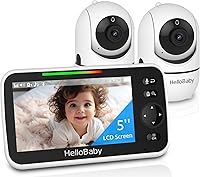
If you want video without WiFi, the HelloBaby unit below is a different kind of backup. It has a 5 inch screen, pan and tilt, night vision, and two way audio, with no WiFi needed.
That HelloBaby HB6550 uses 2.4 GHz FHSS with digital encryption, and it supports up to 4 cameras. It is a good fit if you want a screen that keeps working when the home network is down.
Does Nanit have a handheld monitor for night use?
No, Nanit does not sell a handheld monitor in the same style as a dedicated parent unit. That is why many Nanit owners use a phone, tablet, PC, or a separate backup monitor for overnight checks.
Our post on whether Nanit has a handheld monitor breaks down that gap and the workarounds people use. The short answer is that Nanit stays focused on app based viewing and camera mounts.
If you like the Nanit camera but miss a handheld unit, pair it with an audio monitor for sound and keep the PC for video checks. That split setup covers both needs without forcing a laptop to stay awake all night.
For travel, the audio unit is easier to pack and hand to a grandparent. For home, a no WiFi video monitor gives you a screen that does not depend on your router.
Which setup should you choose for PC viewing?
Choose PC viewing as a second screen, and keep a dedicated backup for overnight use. That rule fits most Nanit owners, especially those who work at a computer during the day.
If you mainly check the nursery while working, a browser view on the PC is simple and cheap. If you need a trusted all night monitor, add an audio or video unit that does not use WiFi.
Check your model first with our review pages, then fix placement and WiFi before you blame the browser. A stable camera position and a strong signal will improve any screen you choose.
For your next step, read the buying guide on how to choose a baby monitor and match the backup unit to your home layout. That will give you a PC view for convenience and a safer plan for the hours that matter most.
Frequently asked questions
Can you view a Nanit baby monitor on a PC?
Yes, in many cases you can open the live view in a web browser on a PC if you sign in with the same Nanit account used on your phone. Check your camera model, app version, browser support, and WiFi strength first, because direct desktop access is not the same as having a dedicated Nanit program for Windows or Mac.
Is there an official Nanit app for Windows or Mac?
Nanit does not offer a separate native desktop app for Windows or Mac in the way it offers phone apps. Most computer viewing relies on a browser session, a phone mirroring tool, or another screen sharing method, and results can vary by browser and operating system.
Why will my Nanit live view lag on a computer?
Lag usually comes from weak WiFi, a crowded network, a far router, or a browser tab that is also streaming other video. Move the router closer to the nursery, use the 2.4 GHz band if your setup allows it, close unused tabs, and keep the camera firmware and browser updated.
What is a good backup if PC viewing stops working?
A dedicated handheld monitor or audio-only monitor is a good backup because it does not depend on your home WiFi or a laptop battery. Our guide to how to choose a baby monitor can help you match the backup type to your room layout and nightly routine.